Introduction
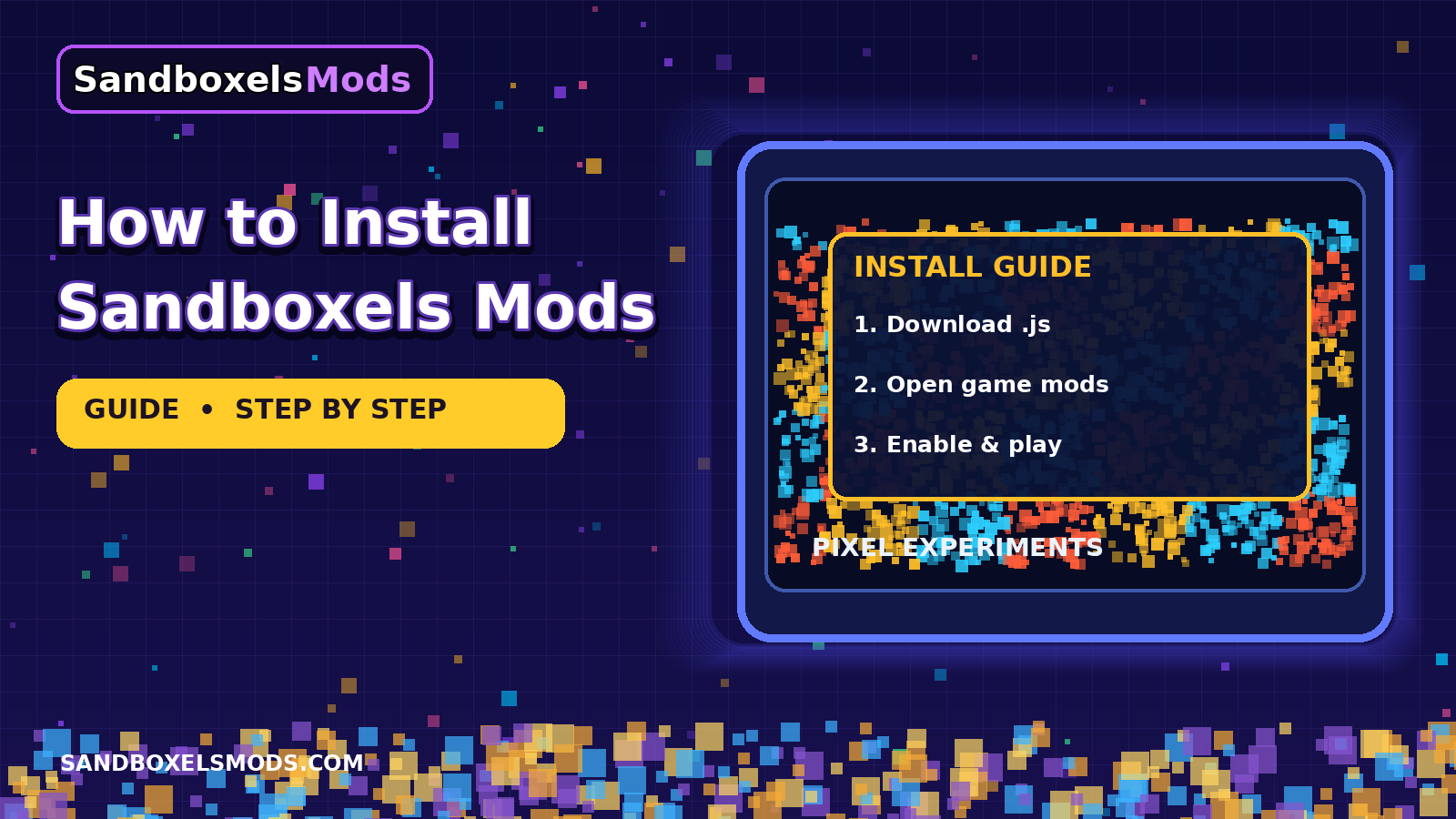
Installing a Sandboxels mod does not involve downloading an installer from this site. Mods are enabled inside the game itself, through the Mod Manager, by typing the mod's exact filename. That is the method stated on the official mod list, and it is the method this guide follows step by step. If you can copy a filename, you can install a mod.
Before you start
- Open Sandboxels in a current desktop or mobile browser. No account or download is required to play the base game.
- Pick one mod first. Enabling several new mods at once makes it hard to tell which one caused a problem.
- Keep the mod page open in another tab, so you can copy the filename instead of retyping it.
Step by step
- Open the game. Use the official playable game linked from the Play page.
- Press Mods. In the game toolbar, press Mods to open the Mod Manager.
- Type the filename exactly. For example,
survival.js. Capitalisation matters:aChefsDream.jsis not the same asachefsdream.js. Include the.jsending. - Press Enter, then refresh the page. The official instructions say to refresh after pressing Enter — do not skip this step.
- Check the menus. Look for the new elements, tools or categories the mod adds. If nothing appears, go to the troubleshooting guide before trying random changes.
Removing a mod
Open the Mod Manager again and remove the mod from your enabled list, then refresh. If a scene was built with a mod's elements, removing the mod may change how that scene behaves, so save anything important first.
Common mistakes
- Missing the
.jsending. - Changing capital letters, or adding a space before or after the filename.
- Typing a mod name (for example, "Survival") instead of its filename (
survival.js). - Assuming a mod failed because the game looks the same — some mods only add a few elements, so check the relevant category menu.